KarmaAxis Home Screen
The KarmaAxis Home Screen is your personalized dashboard to manage tasks, projects, and responsibilities. It provides a real-time overview of what’s due, what’s assigned to you, and what you’ve delegated—helping you stay focused and in control.
This guide provides an overview of the features and navigation tools available on the home screen.
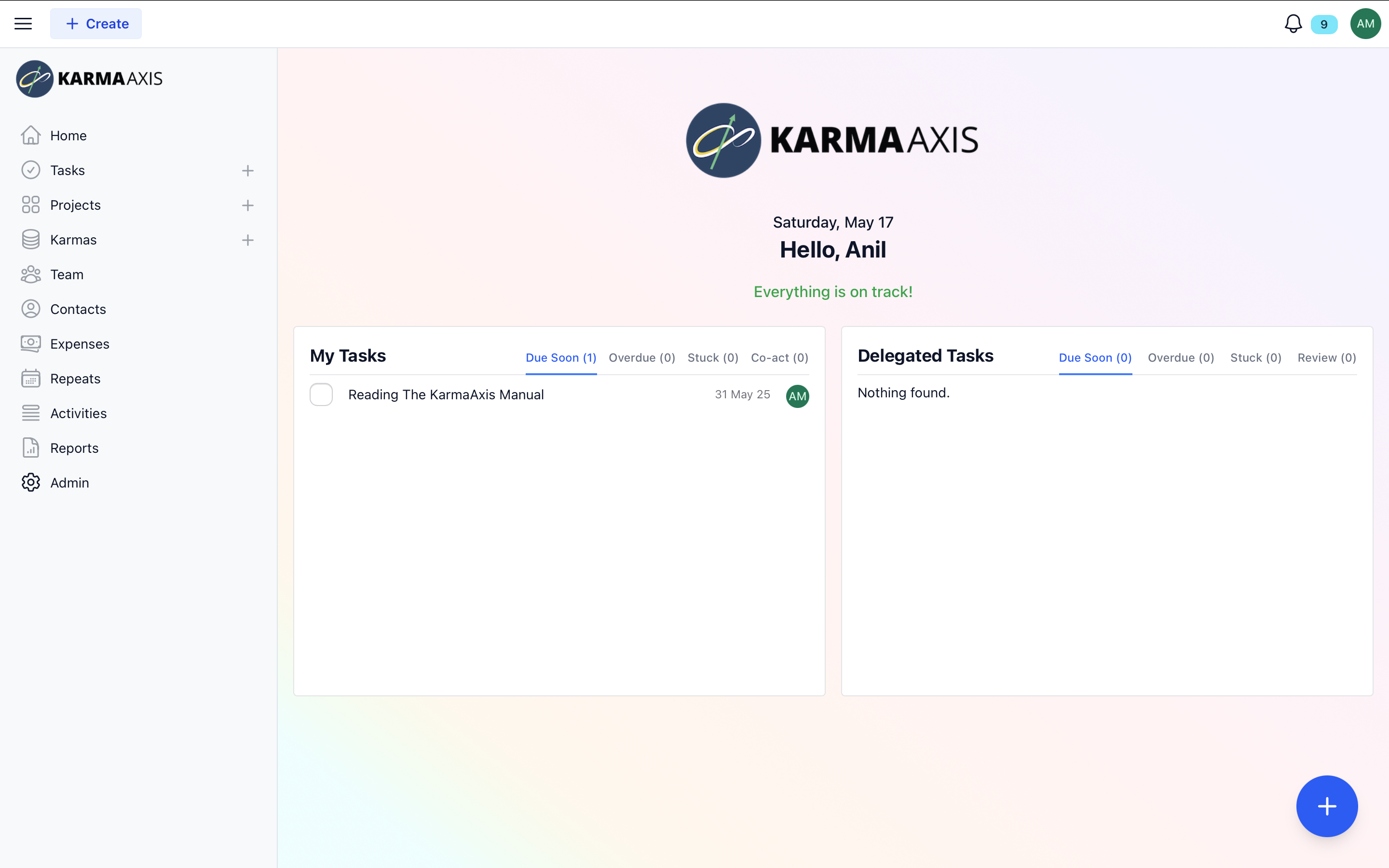
1. Main Navigation Bar (Left Sidebar)
The vertical menu on the left sidebar provides quick access to all key modules of KarmaAxis:
🔹 1. Navigation Sidebar (Left)
The left-hand menu gives you structured access to the key modules of KarmaAxis, helping you manage your responsibilities, monitor team progress, and access tools with ease.
Home Your personalized dashboard.
It shows:
- My Tasks: Categorized into Due Soon, Overdue, Stuck, and Co-act (where you're a collaborator).
- Delegated Tasks: Tasks assigned by you, categorized similarly, with an additional Review tab—tasks completed by others, pending your approval.
- My Projects: Projects you've created or are part of.
- My Karmas & Delegated Karmas: Parallel to tasks—Karmas you've created or been assigned to, and Karmas you've assigned to others.
Tasks A comprehensive view of task activity across:
- Your Tasks
- Delegated Tasks
- Co-actor Tasks
- Team Tasks
- All Tasks (helpful if you're a manager or admin)
- Done Tasks for reference
Projects Displays all structured projects you're part of. Each project can include multiple tasks, discussions, and documentation to track progress and timelines.
Karmas Flexible workstreams. These are not limited to one use—they can be:
- Forms
- Processes
- Registers
- Trackers Any ongoing or one-off effort that needs monitoring.
Team View all your team members currently on KarmaAxis. Roles, hierarchy, and responsibilities can be viewed and navigated through here.
Contacts Store and manage business or individual contacts. You can:
- View customer history
- See all tasks and Karmas tagged to a contact
- Access notes, follow-ups, and linked communications
-Expenses Log and monitor expenses related to tasks, projects, or standalone cases. Includes: - Reimbursement reports - Filtered expense history - Quick-add options for untagged expenses
Repeats Set up and manage recurring tasks, meetings, compliance checks, or activities. Ideal for SOPs or cyclical operations.
Activities View recent updates, filtered by user or module. Only data from your own hierarchy (below your role level) is visible.
Reports Access performance dashboards and insights. This includes:
- Task and Karma statistics
- Hierarchy-based overviews
- Filtered progress visualizations
Admin (Visible only to Admin Users) Redirects to the KarmaAxis Admin Portal, where you can manage:
- Company-level settings
- User roles and permissions
- Access controls and onboarding flows
2. Main Dashboard (Center)
The main dashboard area is designed to give you real-time clarity and control:
A. My Tasks Panel (Left):
- My Tasks section lists all tasks assigned to you.
The tasks are organized into categories such as:
- Due Soon: Tasks with upcoming deadlines
- Overdue: Tasks that have missed their deadlines.
- Stuck: Tasks that are currently marked as "stuck," indicating a blocker or issue preventing progress.
- Co-Act: Tasks in which you are involved as a CoActor (collaborator).
Each task displays the task title and the profile image of the person assigned. Clicking on a task will open more details about it.
Tasks that are near their deadline are shown in the Due Soon category, and this number is displayed on the top.
B. Delegated Tasks Panel (Right):
- The Delegated Tasks section shows tasks that you have assigned to other people. This helps you monitor tasks that you are overseeing.
Similar to the My Tasks panel, delegated tasks are categorized by:
- Due Soon
- Overdue
- Stuck
- Review: tasks completed and awaiting your approval.
Each task shows the name of the person it is assigned to, with their profile picture visible.
C. My Projects Panel (New):
- Displays a consolidated list of projects where you're either the creator or an active participant.
D. My Karmas / Delegated Karmas (Hidden/Expandable):
- These work similarly to task panels, tracking Karmas you've been assigned or those you've assigned to others.
3. Top Header Center
- Date, Greeting and Status:
- Displays the current day and date.
- Greets you by name (e.g., “Hello, Anil”).
Shows a status message below your name: "You seem to be on track." in Green when everything is on track. "You seem to be off track. There are 2 overdue tasks." In Red or Orange if you have overdue or stuck tasks.
This feature provides real-time feedback on your task management, helping you stay on schedule.
4. Top Navigation Bar (Right)
Notification Icon:
- This shows the number of pending notifications. Clicking this will open a list of updates and alerts, helping you stay informed about new assignments, task updates, and more.
User Profile:
- Your profile image is displayed at the top right, and clicking it allows you to access the focus mode, your personal settings or log out.
5. Floating Add (+) Button (Bottom Right)
- Blue Circular Plus (+) Icon:
- The plus (+) icon in the bottom-right corner is a quick access button to add new tasks or Karmas without navigating through menus. Clicking it opens a popup for task creation, allowing you to add new assignments instantly.
Mobile Layout Note
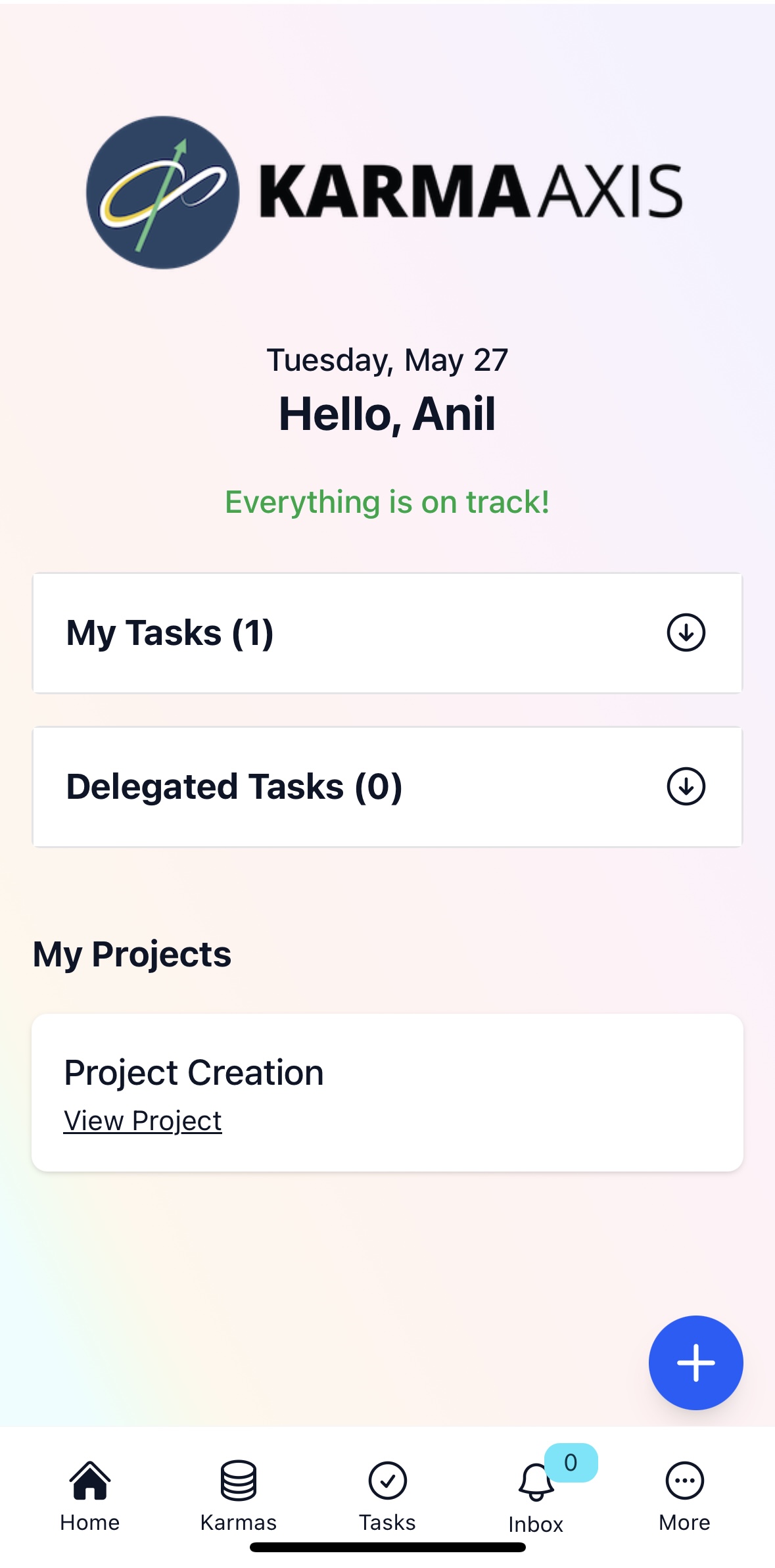
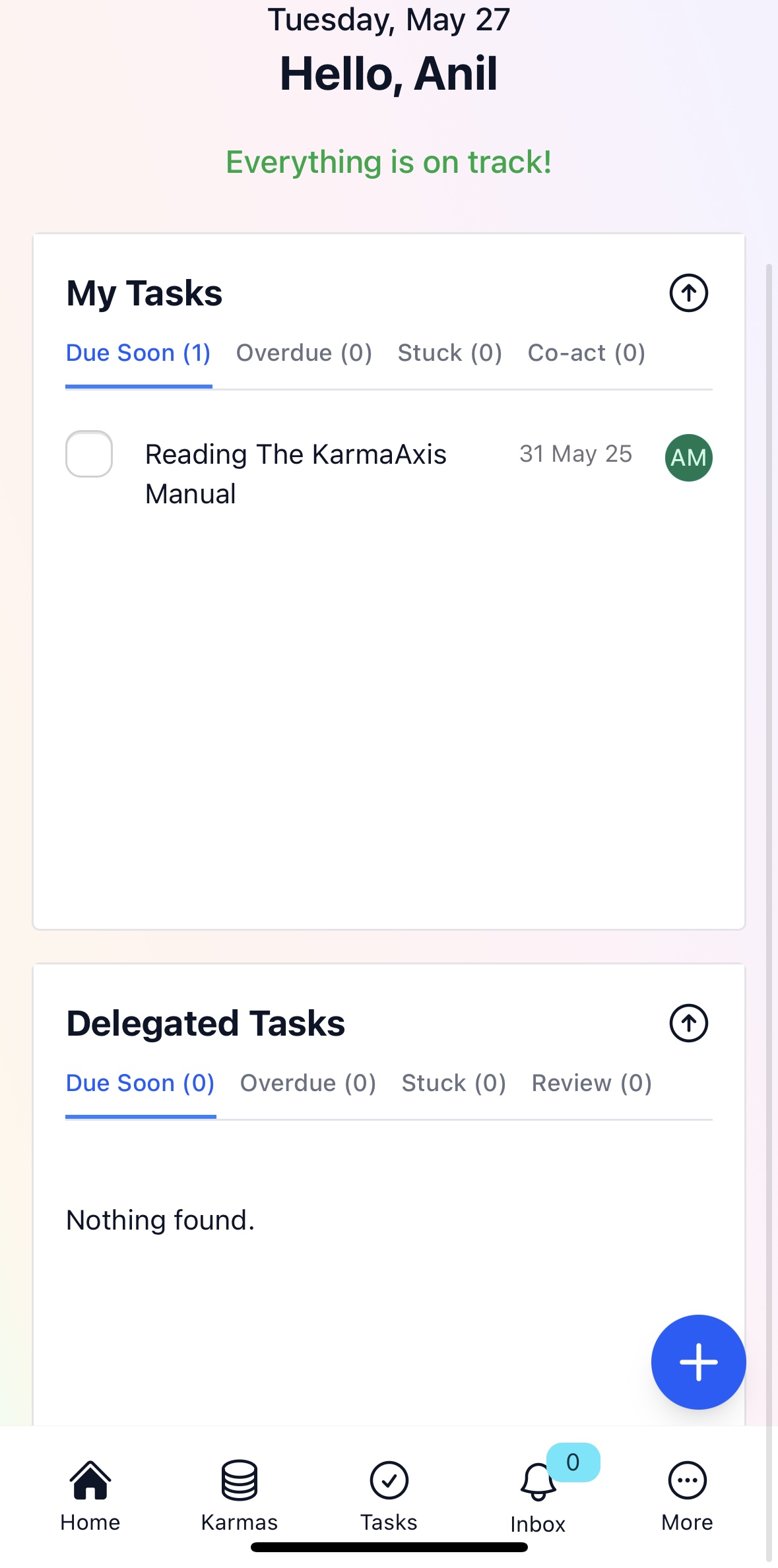
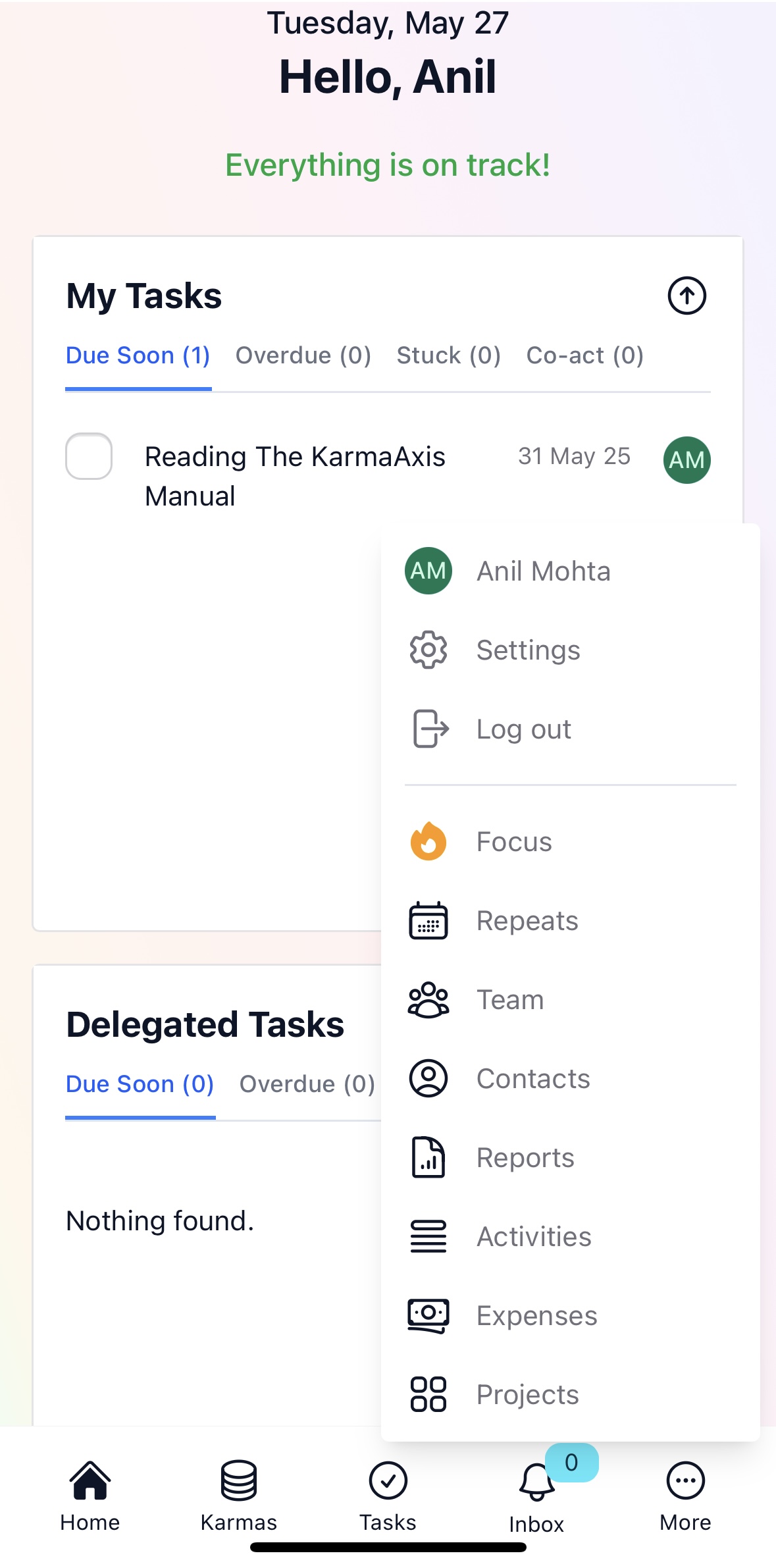
On mobile devices, KarmaAxis offers the same features with a layout optimized for smaller screens. Key navigation options like Home, Karmas, Tasks, Inbox, and More appear in a bottom navigation bar. Tapping More reveals additional modules like Projects, Team, Contacts, Expenses, Reports, Focus Mode and Settings. Fire Icon (Focus Mode): Clicking this icon will take you into Focus Mode, where only tasks that have been marked as "Focus" are visible, hiding everything else to minimize distractions. The Home screen panels (My Tasks, Delegated Tasks, and My Projects) are collapsed by default—tap the down arrow to expand and view details. All functions remain the same as desktop, just arranged for easier thumb access.
Summary:
- Navigation Sidebar: Quickly access tasks, Karmas, team members, contacts, and expenses.
- Main Dashboard: View and manage My Tasks and Delegated Tasks, categorized by urgency and status.
- Alerts and Notifications: Stay informed with personalized alerts and the notification icon.
Floating Action Button: Easily create new tasks or projects with the plus icon.
Fire Icon (Focus Mode):
- Clicking this icon will take you into Focus Mode, where only tasks that have been marked as "Focus" are visible, hiding everything else to minimize distractions.
By utilizing the features on the home screen, you can efficiently manage tasks, stay on top of deadlines, and collaborate seamlessly with your team.